'%20stroke='%23ADB7CD'%3e%3cg%20id='斜线'%20transform='translate(466,%20173)'%3e%3cline%20x1='0'%20y1='10'%20x2='5'%20y2='0'%20id='路径'%3e%3c/line%3e%3c/g%3e%3c/g%3e%3c/g%3e%3c/svg%3e)
How to use IPPeak in BitBrowser: BitBrowser for Mulit-accounting
How to use IPPeak in BitBrowser: BitBrowser for Mulit-accounting
'%20fill='%23ADB7CD'%20fill-rule='nonzero'%3e%3cg%20id='日期'%20transform='translate(428,%20369)'%3e%3cpath%20d='M15,2%20L19,2%20C19.2652,2%2019.5196,2.10536%2019.7071,2.29289%20C19.8946,2.48043%2020,2.73478%2020,3%20L20,19%20C20,19.2652%2019.8946,19.5196%2019.7071,19.7071%20C19.5196,19.8946%2019.2652,20%2019,20%20L1,20%20C0.73478,20%200.48043,19.8946%200.29289,19.7071%20C0.10536,19.5196%200,19.2652%200,19%20L0,3%20C0,2.73478%200.10536,2.48043%200.29289,2.29289%20C0.48043,2.10536%200.73478,2%201,2%20L5,2%20L5,0%20L7,0%20L7,2%20L13,2%20L13,0%20L15,0%20L15,2%20Z%20M13,4%20L7,4%20L7,6%20L5,6%20L5,4%20L2,4%20L2,8%20L18,8%20L18,4%20L15,4%20L15,6%20L13,6%20L13,4%20Z%20M18,10%20L2,10%20L2,18%20L18,18%20L18,10%20Z%20M4,13%20L6,13%20L6,15%20L4,15%20L4,13%20Z%20M8,13%20L16,13%20L16,15%20L8,15%20L8,13%20Z'%20id='形状'%3e%3c/path%3e%3c/g%3e%3c/g%3e%3c/g%3e%3c/svg%3e) March 6.2026
March 6.2026
【Official Website】
Chinese: https://www.bitbrowser.cn/
Languages around the world: https://www.bitbrowser.net/
What does BitBrowser do?
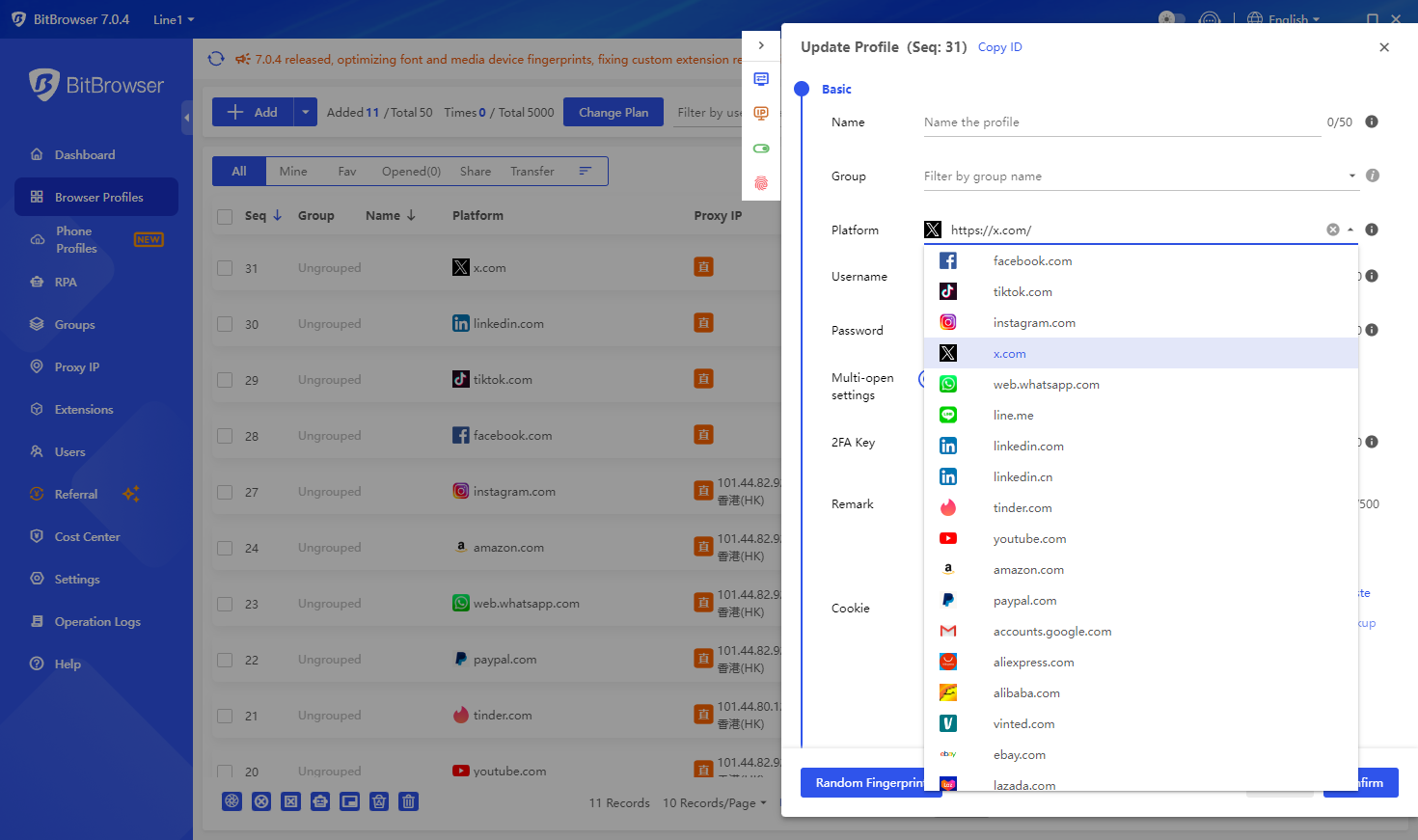
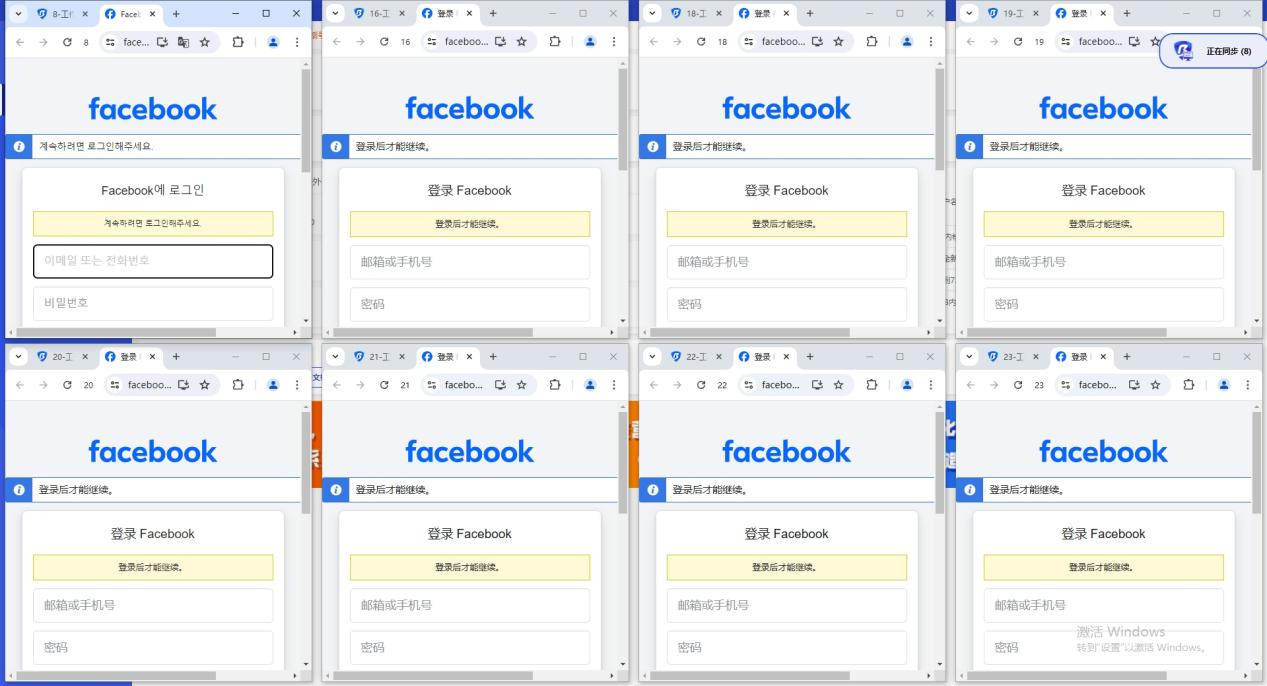
BitBrowser mainly realizes: multiple browser windows, multiple accounts (FB/TK/X/WS..), to prevent the occurrence of associated accounts between windows. Each window simulates independent computer information and proxy IP addresses to make the environments independent and isolated from each other, thereby improving account security! Deeply developed using Google and Firefox kernels, it achieves a safe and pure environment effect at the physical level. There is 100% no correlation between browser windows. With the multi-employee collaborative management function, it improves your account security and operational efficiency!
What is the difference between BitBrowser and ordinary browsers?
BitBrowser can log in to multiple accounts to prevent association. When you open BitBrowser, you can open multiple accounts on the same platform in the browser window to reduce the risk of unrelated accounts.
Which businesses are suitable for BitBrowser?
In the cross-border e-commerce industry, you can open multiple store windows to log in to multiple store accounts.
For social media account maintenance, etc., do social media account matrix, maintenance and other operations.
For web3.0 virtual business, it has a good effect of preventing multiple logins from being associated, and can also protect local privacy, blockchain, etc.
For advertising placement/SEO optimization, etc., it protects local information very well. Supports changing addresses to protect local information, etc. Research work, etc.
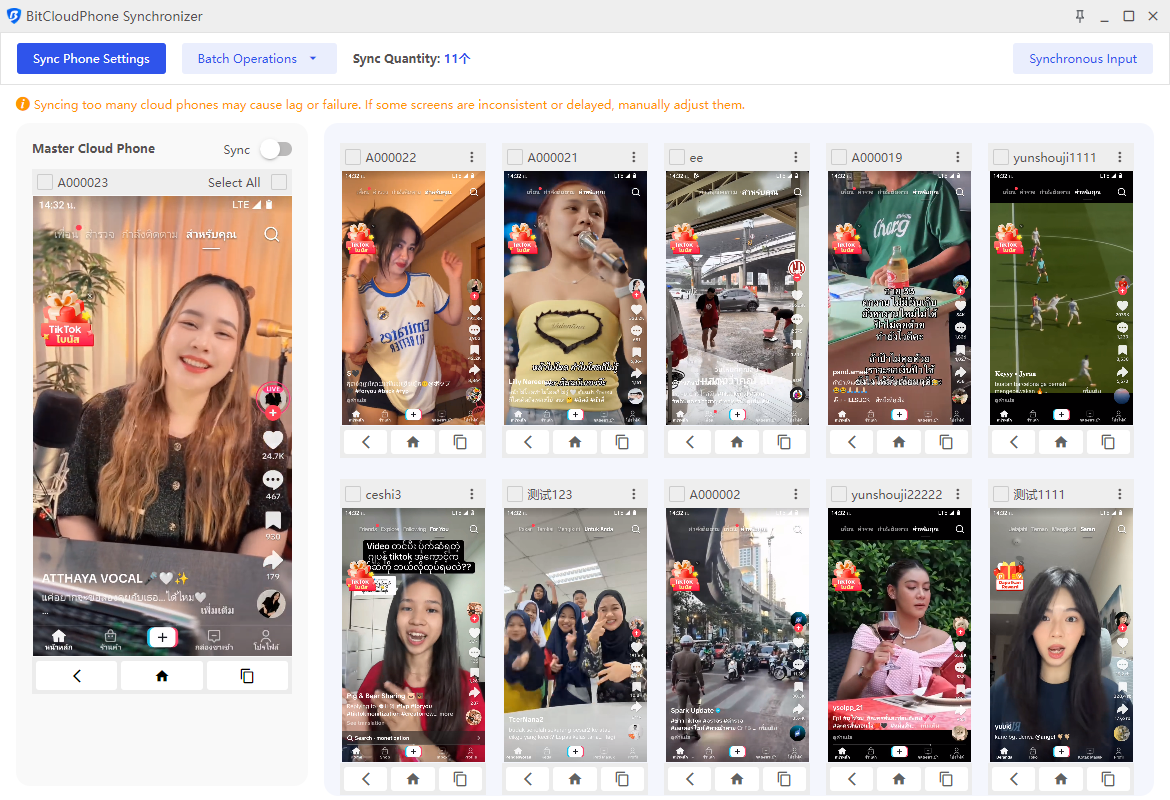
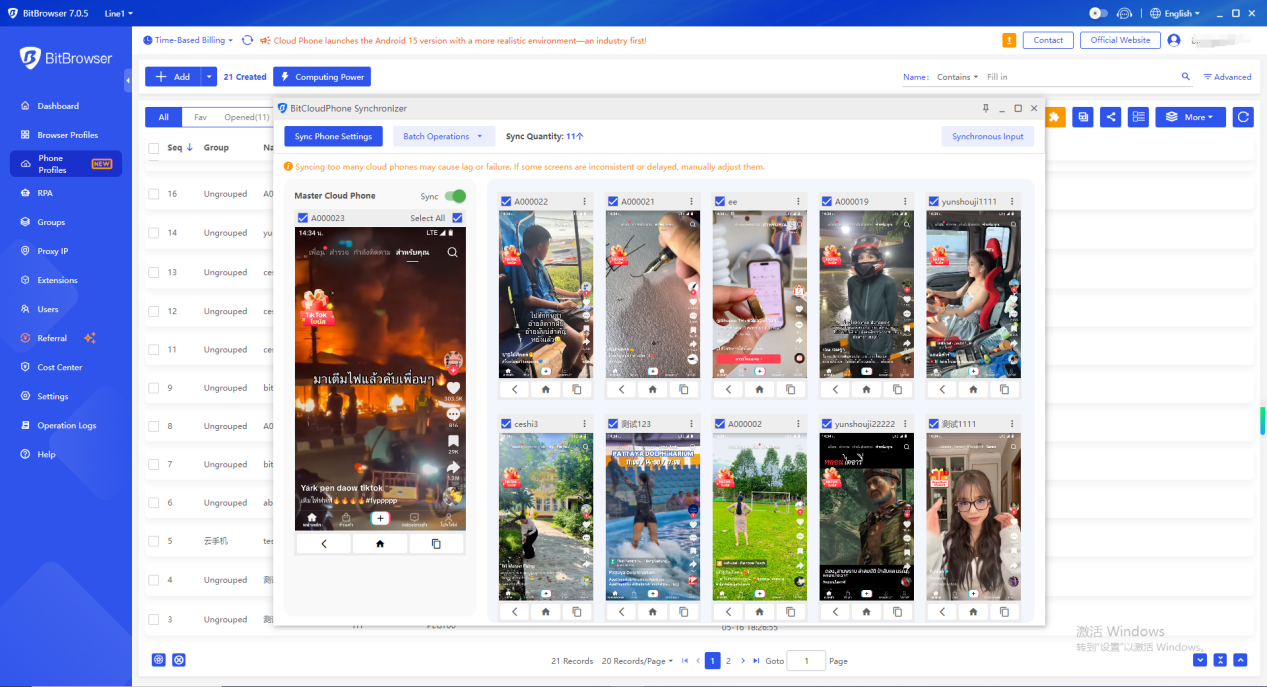
BitBrowser also integrates cloud phone functionality:
Matching a vast array of real phone parameters, one device allows you to easily manage multiple cloud phones!
Simple configuration: Simply configure a proxy to easily access major global apps. Supports one-click new devices for efficient mobile environment rotation!
1. Simple and Fast Phone Profiles Configuration
Automatically match real phone parameters to efficiently complete overseas environment configuration! Configure a proxy IP for your environment with a single click, creating a fast, stable, and secure network environment. Native support for Google Play ensures seamless access to international apps and services.
2. Simulating a Vast Array of Parameters, Authenticating Environments
Simulating a vast array of parameters, using real phone chipsets, provides a more realistic overseas phone environment. Automatically matches core settings such as language, time zone, location, carrier, and SIM information based on IP addresses. Supporting over 600 global carriers, automatically simulates SIM information, and emulates various phone sensor parameters.
3. Easily Set Sub-Account Permissions for Convenient Account Asset Management
Flexibly assign permissions to team sub-accounts and dynamically adjust the number of mobile environments a sub-account can use for efficient account asset management.
Flexibly adjust the number of mobile environments to maximize operational costs. Sub-accounts operate independently, maximizing the use of idle resources and improving environment utilization. Easily acquire a large number of overseas customers and implement matrix marketing!
Setup Guide
Step 1: Register and Log In to Your IPPeak Account
1. Visit the IPPeak official website:
Click “Sign Up” in the top-right corner to create and log in to your account.
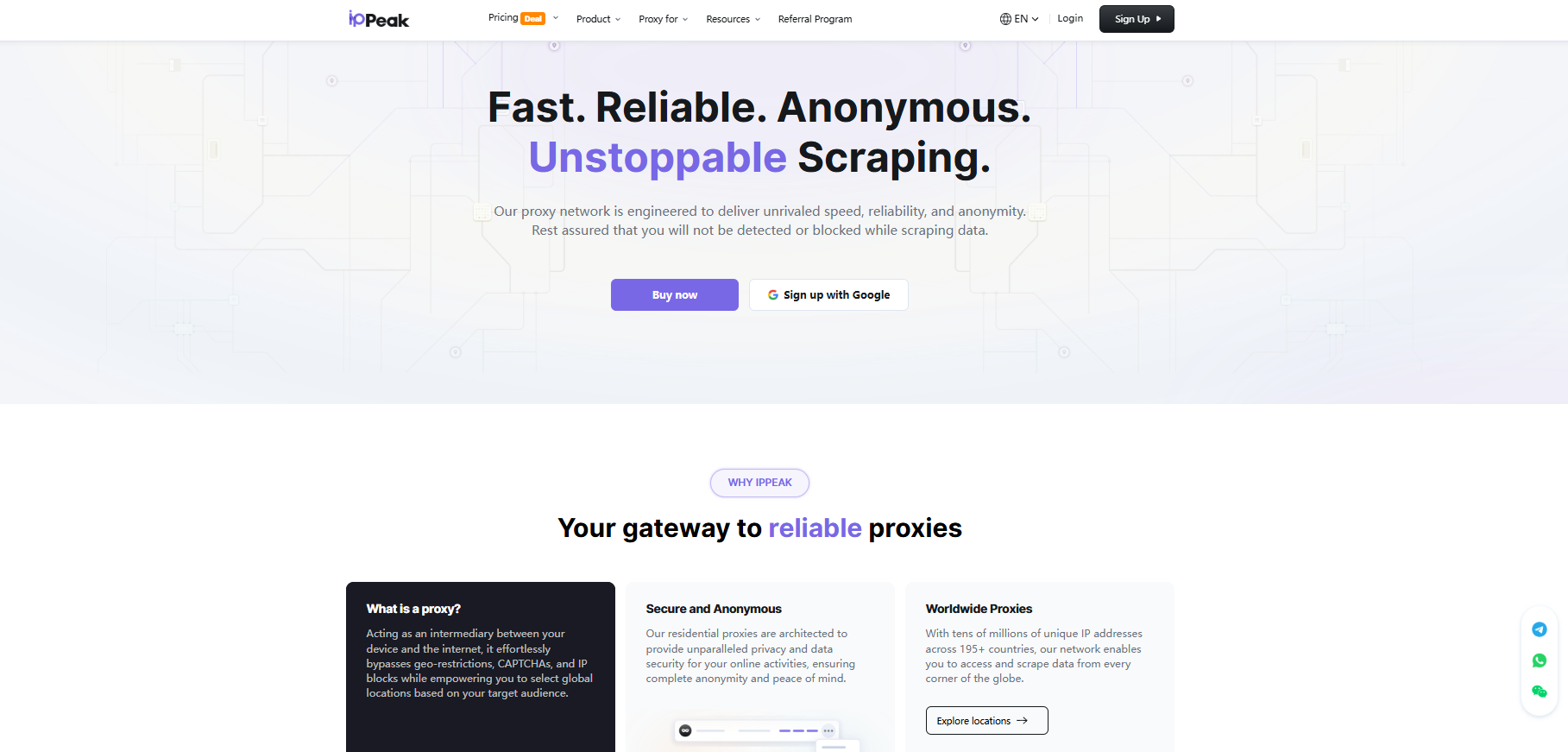
2. Enter the user dashboard and select a proxy plan that fits your needs. Available options include:
● Residential Proxies
● Static Residential Proxies
● Unlimited Residential Proxies
3. Go to the “Username / Password” page to generate your proxy credentials.
4. Configure the following parameters based on your requirements:
● Country / Region
● Session type
● Nearest proxy host
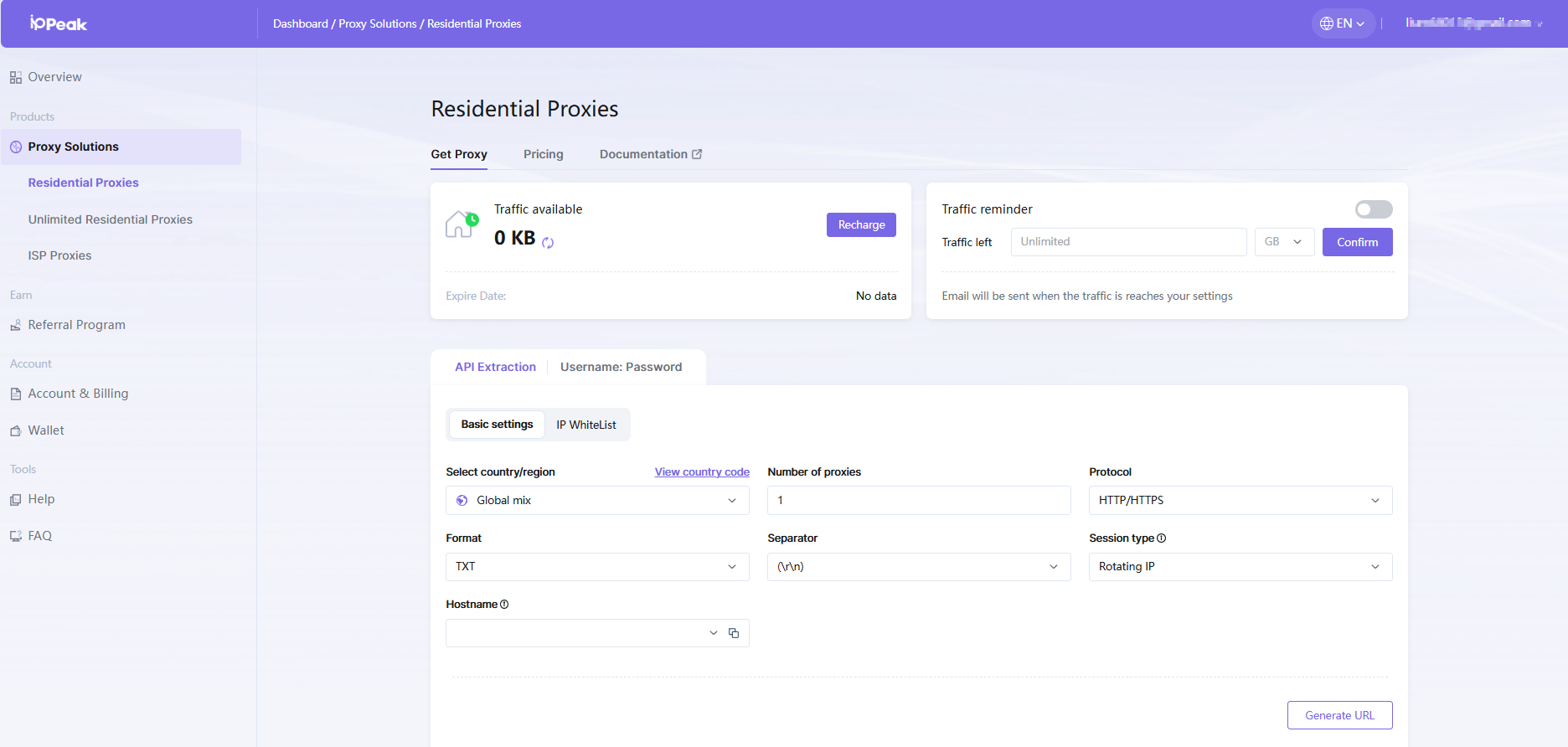
The generated proxy details will include:
● Proxy Host
● Port
● Username
● Password
Please save this information securely, as it will be required when configuring BitBrowser.
Step 2: Download and Register BitBrowser
Bit Fingerprint Browser supports 10 profiles for free (10 profiles are set up and opened), and it is necessary to carry static/dynamic proxy IP to the window to set it, and the local environment starts global mode. Only after the fingerprint is generated can it operate normally. If the proxy is not set, the local proxy is used. If 10 browsers are not enough, you need to purchase a membership package.
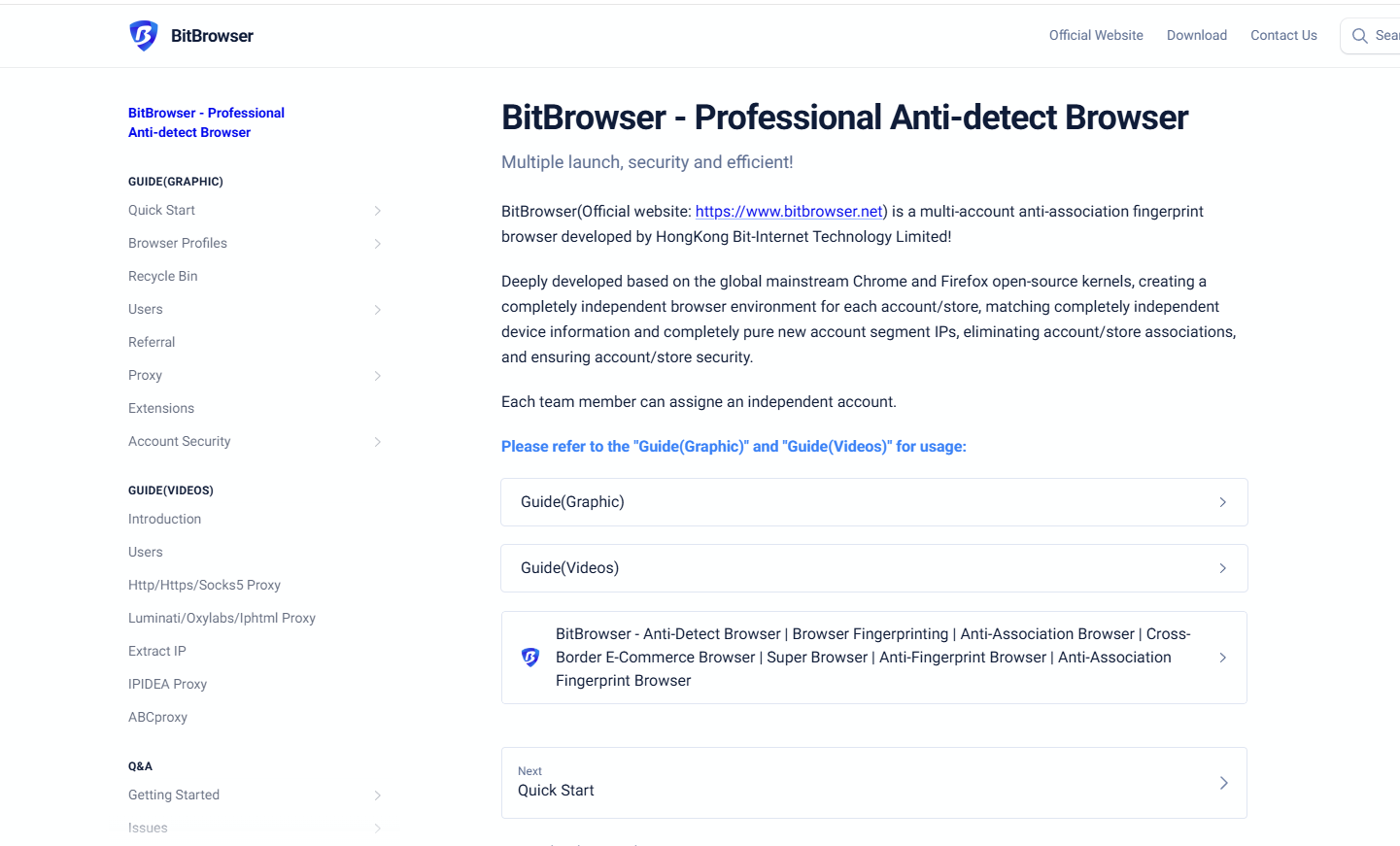
Step 3: Bind IPPeak Proxy in BitBrowser
In the browser profile configuration page, locate the Proxy Settings section and fill in the details as follows:
● Proxy Type: HTTP or SOCKS5
● IP / Host: Proxy host provided by B2Proxy
● Port: Corresponding port number
● Username: Proxy username
● Password: Proxy password
Step 4: Test the Proxy and Save the Configuration
After completing the setup, click “Check Proxy.”
Once the system confirms a successful connection, save the browser profile.
What are the functions of BitBrowser?
For details, please see the official website link: https://www.bitbrowser.net/?code=4cc404
One-click synchronization: control multiple windows at the same time.
Proxy settings: support global proxy environment construction. Static/dynamic.
Google/Firefox kernel: supports deep kernel development. You can switch to using the kernel in the browser.
RPA automation: you can set up automation programs for the creation port, and automatically perform simple and brainless work.
API interface: Local API :The software comes with local services, which supports users to operate the software window and run automation scripts through the Local API interface call.
Script market: provides the ecology of the script market and provides a publishing section for more users and developers.
Batch operation function
Window batch import/export: batch creation and upload, download the template and fill it out and upload it directly.
Cookies batch import and export: support selecting multiple windows to batch download or export cookies.
Batch proxy setting: batch proxy/window fingerprint setting.
Batch remote operation: support sub-account setting. Employee allocation and collaborative operation.
Summary:
BitBrowser is widely used across various cross-border business scenarios, enabling multiple accounts to be logged in and managed in fully isolated fingerprint environments with no linkage between them. IPPeak’s high-purity real residential proxies assign a unique, stable, and geo-accurate IP to each browser profile. After seamless integration, the two work together to flexibly access proxy resources worldwide, improving login success rates and ensuring long-term account stability while maintaining a high level of security. Combined with the 10 free permanent environments and team permission management features, this solution enables safe, efficient, and scalable multi-account operations—making it ideal for cross-border eCommerce, social media matrices, ad campaigns, and data collection.
You might also enjoy

How to Use Proxy Resources Effectively for Multi-Store Operations?
Use dedicated IPs for each store, keep login environments consistent, and choose reliable residential proxies to reduce account linking risks.
March 6.2026
How to Improve ROI in Cross-Border Advertising? From Data Monitoring to Network Optimization
Learn how to improve ROI in cross-border advertising through accurate data monitoring.
March 6.2026
Why Choose IPPeak for Web Data Scraping? The Key to Stability and Efficiency
Discover why IPPeak is the ideal choice for web data scraping.
March 6.2026
'%3e%3cg%20id='装饰物左'%20transform='translate(70,%20789.5)%20scale(-1,%20-1)%20translate(-70,%20-789.5)translate(0,%20674)'%3e%3cmask%20id='mask-2'%20fill='white'%3e%3cuse%20xlink:href='%23path-1'%3e%3c/use%3e%3c/mask%3e%3cg%20id='矩形'%3e%3c/g%3e%3cg%20id='bg-graphic-5'%20mask='url(%23mask-2)'%3e%3cg%20transform='translate(0,%20-23)'%3e%3cline%20x1='140.97459'%20y1='23.29327'%20x2='66.47459'%20y2='97.7934'%20id='路径'%20stroke='%23DFE6F3'%20stroke-width='1'%20fill='none'%3e%3c/line%3e%3cline%20x1='140.99959'%20y1='154.6709'%20x2='79.99999'%20y2='215.6709'%20id='路径'%20stroke='%23DFE6F3'%20stroke-width='1'%20fill='none'%3e%3c/line%3e%3cline%20x1='140.99959'%20y1='110.2705'%20x2='24.44919'%20y2='226.8209'%20id='路径'%20stroke='%23DFE6F3'%20stroke-width='1'%20fill='none'%3e%3c/line%3e%3cline%20x1='140.99959'%20y1='64.945'%20x2='0'%20y2='205.9449'%20id='路径'%20stroke='%23DFE6F3'%20stroke-width='1'%20fill='none'%3e%3c/line%3e%3cline%20x1='140.99959'%20y1='196.2959'%20x2='83.64959'%20y2='253.6469'%20id='路径'%20stroke='%23DFE6F3'%20stroke-width='1'%20fill='none'%3e%3c/line%3e%3cline%20x1='141.35359'%20y1='110.6238'%20x2='89.97929'%20y2='161.9979'%20id='路径'%20stroke='%237868E6'%20stroke-width='2'%20fill='none'%3e%3c/line%3e%3cline%20x1='164.70859'%20y1='0'%20x2='113.33459'%20y2='51.3743'%20id='路径'%20stroke='%237868E6'%20stroke-width='2'%20fill='none'%3e%3c/line%3e%3ccircle%20id='椭圆形'%20stroke='%237868E6'%20stroke-width='2'%20fill='%23E1DDFD'%20fill-rule='nonzero'%20cx='86.61909'%20cy='165.2909'%20r='5'%3e%3c/circle%3e%3cline%20x1='117.47459'%20y1='178.4359'%20x2='103.61959'%20y2='192.2909'%20id='路径'%20stroke='%237868E6'%20stroke-width='1'%20fill='none'%3e%3c/line%3e%3cline%20x1='69.83009'%20y1='136.2929'%20x2='55.97459'%20y2='150.1489'%20id='路径'%20stroke='%237868E6'%20stroke-width='1'%20fill='none'%3e%3c/line%3e%3ccircle%20id='椭圆形'%20stroke='%237868E6'%20stroke-width='2'%20fill='%23E1DDFD'%20fill-rule='nonzero'%20cx='109.97459'%20cy='54.6672'%20r='5'%3e%3c/circle%3e%3c/g%3e%3c/g%3e%3c/g%3e%3c/g%3e%3c/g%3e%3c/svg%3e)
'%3e%3cg%20id='装饰物右'%20transform='translate(1780,%20214)'%3e%3cmask%20id='mask-2'%20fill='white'%3e%3cuse%20xlink:href='%23path-1'%3e%3c/use%3e%3c/mask%3e%3cg%20id='矩形'%3e%3c/g%3e%3cg%20id='bg-graphic-5'%20mask='url(%23mask-2)'%3e%3cg%20transform='translate(0,%20-23)'%3e%3cline%20x1='140.97459'%20y1='23.29327'%20x2='66.47459'%20y2='97.7934'%20id='路径'%20stroke='%23DFE6F3'%20stroke-width='1'%20fill='none'%3e%3c/line%3e%3cline%20x1='140.99959'%20y1='154.6709'%20x2='79.99999'%20y2='215.6709'%20id='路径'%20stroke='%23DFE6F3'%20stroke-width='1'%20fill='none'%3e%3c/line%3e%3cline%20x1='140.99959'%20y1='110.2705'%20x2='24.44919'%20y2='226.8209'%20id='路径'%20stroke='%23DFE6F3'%20stroke-width='1'%20fill='none'%3e%3c/line%3e%3cline%20x1='140.99959'%20y1='64.945'%20x2='0'%20y2='205.9449'%20id='路径'%20stroke='%23DFE6F3'%20stroke-width='1'%20fill='none'%3e%3c/line%3e%3cline%20x1='140.99959'%20y1='196.2959'%20x2='83.64959'%20y2='253.6469'%20id='路径'%20stroke='%23DFE6F3'%20stroke-width='1'%20fill='none'%3e%3c/line%3e%3cline%20x1='141.35359'%20y1='110.6238'%20x2='89.97929'%20y2='161.9979'%20id='路径'%20stroke='%237868E6'%20stroke-width='2'%20fill='none'%3e%3c/line%3e%3cline%20x1='164.70859'%20y1='0'%20x2='113.33459'%20y2='51.3743'%20id='路径'%20stroke='%237868E6'%20stroke-width='2'%20fill='none'%3e%3c/line%3e%3ccircle%20id='椭圆形'%20stroke='%237868E6'%20stroke-width='2'%20fill='%23E1DDFD'%20fill-rule='nonzero'%20cx='86.61909'%20cy='165.2909'%20r='5'%3e%3c/circle%3e%3cline%20x1='117.47459'%20y1='178.4359'%20x2='103.61959'%20y2='192.2909'%20id='路径'%20stroke='%237868E6'%20stroke-width='1'%20fill='none'%3e%3c/line%3e%3cline%20x1='69.83009'%20y1='136.2929'%20x2='55.97459'%20y2='150.1489'%20id='路径'%20stroke='%237868E6'%20stroke-width='1'%20fill='none'%3e%3c/line%3e%3ccircle%20id='椭圆形'%20stroke='%237868E6'%20stroke-width='2'%20fill='%23E1DDFD'%20fill-rule='nonzero'%20cx='109.97459'%20cy='54.6672'%20r='5'%3e%3c/circle%3e%3c/g%3e%3c/g%3e%3c/g%3e%3c/g%3e%3c/g%3e%3c/svg%3e)
© Copyright 2026 ippeak.com. All rights reserved.


